Task Details Page
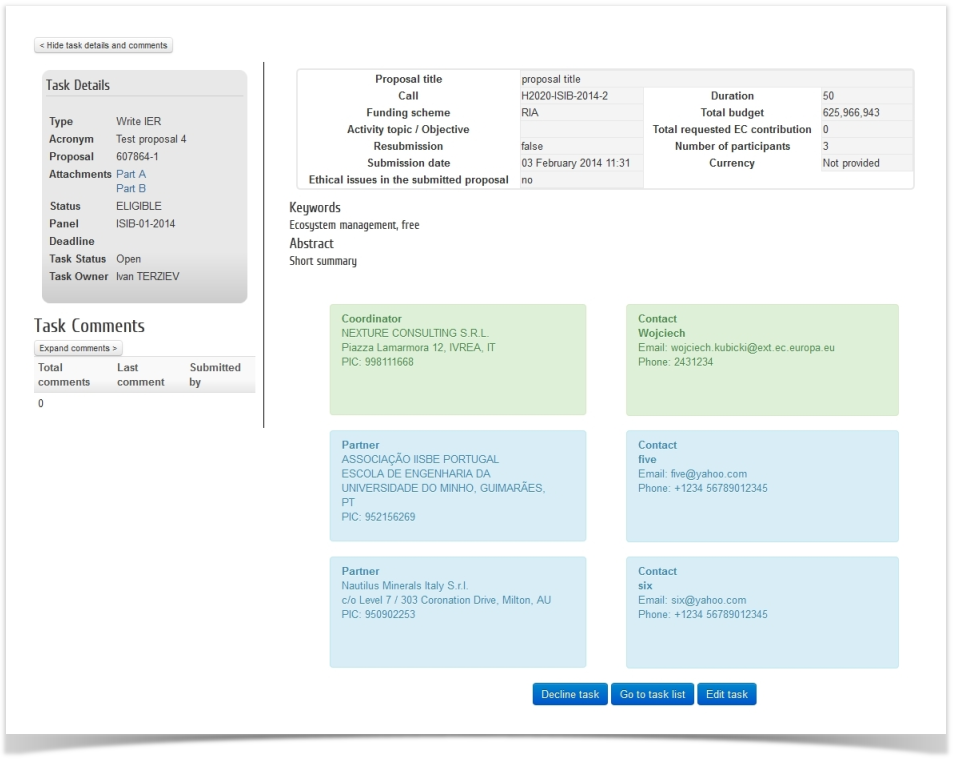
When you open a task, you will see the Task Details page. It contains the following elements:

- Task details. It lists which kind of task this is, the acronym and proposal number, the panel to which the task belongs, deadline, task status and owner.
- Proposal documents. Links to download the Part A, Part B and any annexes available from this proposal.
- Task comments. A section where you can exchange messages with other evaluators and panel members. You can start a new conversation by criterion, reply to existing comments, and mark comments as read. Use the search filters (Criterion, Author, Date, Text) to navigate long discussion threads.
- Proposal overview. A summary of the proposal including the abstract, keywords and consortium composition.
- Action buttons. Depending on the task status, you will see buttons to accept, decline, or edit the task. Once accepted, the Edit task button opens the evaluation form.

You can reach this screen in several ways:
From the Dashboard Tab
- Click on the task name to open the Proposal Details screen:

From the Proposals Tab
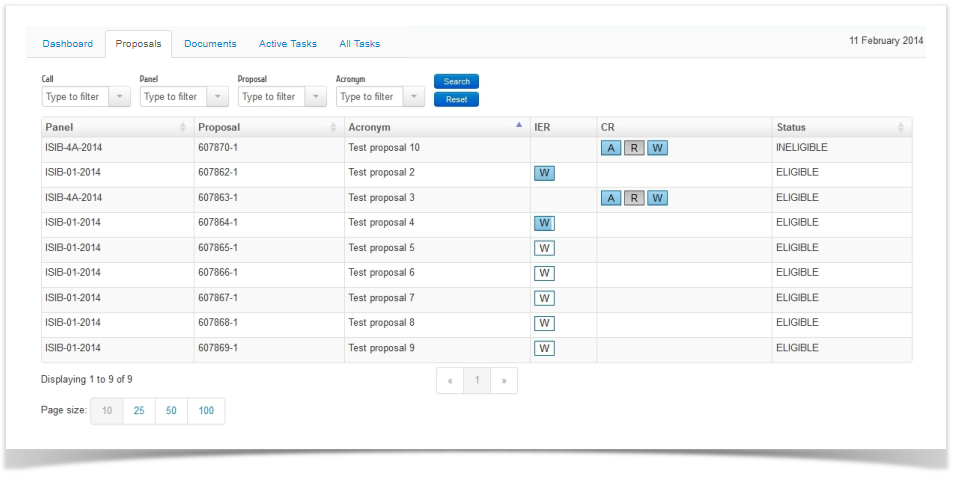
- Open the Proposals Tab:
-
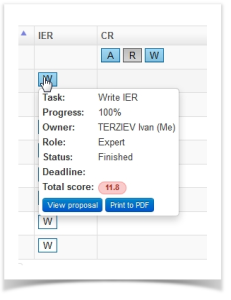
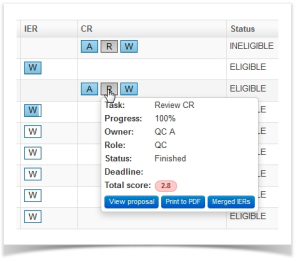
Hover over an icon link in the IER and CR columns, on the row of the desired proposal, to display an additional window with summary information about the proposal, as well as links for actions you can perform, depending on the task type (Write, Approve, Review). The proposal view action is available for each of the task types. The visual example below shows sample information about a “Write IER” task and a “Review CR” task:
Click to access proposal details
- Click the
 button to open the Proposal Details screen:
From the Active Tasks or the All Tasks Tabs
- Open the Active Tasks tab or the All Tasks tab. The proposal view access option is identical from both tabs. The visual example below shows the Active Tasks tab.
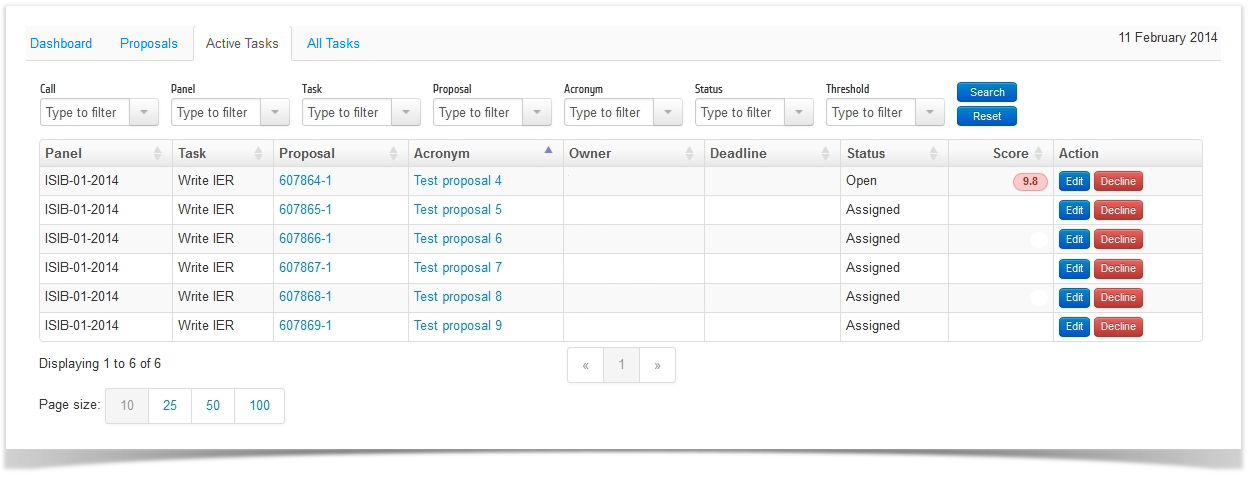
- Click the Proposal or Acronym link in the respective proposal row, as shown in the visual example above.
Task Form
The task form is where you will provide the input for the task, i.e. score, comments, etc. Each form is different depending on the type of task that it is. See the following pages to see a description of each task:
Before accessing the form, you need to accept it or decline it. When you submit or decline the task, it is removed from the Active Tasks tab. You can find it again in the All Tasks tab until the current evaluation phase is finalised.
Accepting a task
You can only accept (i.e. start working on) a task, which is assigned to you and which is with an Assigned status. All tasks assigned to you will be shown in the Dashboard and Active Tasks tabs (of course you can also look for them within the All Tasks tab). To accept a task:
- Open the Proposal Details screen (see the previous section for help on accessing it).
- If there is a task with an Assigned status for this proposal, you will be able to accept to work on this task using the
 button, as shown in the visual example below:
Once you accept a task, its status is changed to Open under the Active Tasks tab until you submit or decline the task (or if it is cancelled by EC Staff for some reason). The status shows as to complete under the Dashboard tab. 
Declining a task
You can decline a task assigned to you at any time throughout the evaluation process. When declining:
- You will be prompted to provide the reason(s) why you are declining the task.
- Once you have declined a task, you will no longer be able to access the proposal, the evaluation report, and the task itself. In case you have declined a task by mistake, and you want to re-open it, please contact your call coordinator / panel coordinator who is the only person authorised to administer your tasks.
To decline a task:
-
You can access the Decline button or the Decline task button from the task list:

… or from the task details screen:
…or from the evaluation report form:
-
Select whether it is due to a conflict of interest (COI) or other reasons. The system will prompt you to select the main reason from a list specific to the task. In the visual example below, the main reason is Conflict of interest:

The system will then display a list of sub-reasons in order to enable you to specify further. In the visual example below, you can choose from a formal list of direct and indirect conflicts of interest that describe in more detail why you would think you could not evaluate the proposal:

If your reason is not related to a conflict of interest, select Other reasons and provide a description in the next step.
The Task Comments section is located on the left of every task page. It allows you to communicate with other evaluators and coordinators involved in the same proposal. Comments are visible to all users with access to the task form, not just the task owner.

Starting and replying to conversations
To start a new conversation, click on Expand comments, select a criterion by clicking on it, the criterion name displays with a box where you can enter the comment, type it and submit it by clicking on Add comment.

You can reply to existing comments, and mark individual comments or entire threads as read to keep track of what you have already reviewed. The total number of unread comments is clearly indicated, and each unread comment appears in bold.
Mark as read
You can mark individual comments or entire threads as read. This helps you keep track of which comments you have already reviewed, especially in long discussions with many participants.

Email notifications (CR task)
When entering a comment in the Consensus Report (CR) task, you can tick the notification checkbox to send email notifications to other users in the consensus group. This is important: other evaluators will not automatically be notified of your comment unless you enable this option.
Voting on comments
You can vote on a comment to indicate your approval or disapproval. Votes can be removed if needed. This is useful during consensus discussions to quickly gauge agreement on specific points without having to write a full reply.

Search and filtering
When expanding the comments, search filters allow you to search by one or a combination of: Criterion, Author, Date, or Text. The name of the activity is displayed in front of the task comments and can be used as a filter, which is particularly useful when there are comments from a disapproved activity. Different colours help differentiate between comments from different users, making it easier to follow who said what.

If the comment section becomes difficult to follow due to many exchanges, use the search filters and the Refresh button regularly. Consider using the criterion filter to focus on one criterion at a time rather than scrolling through all comments.