
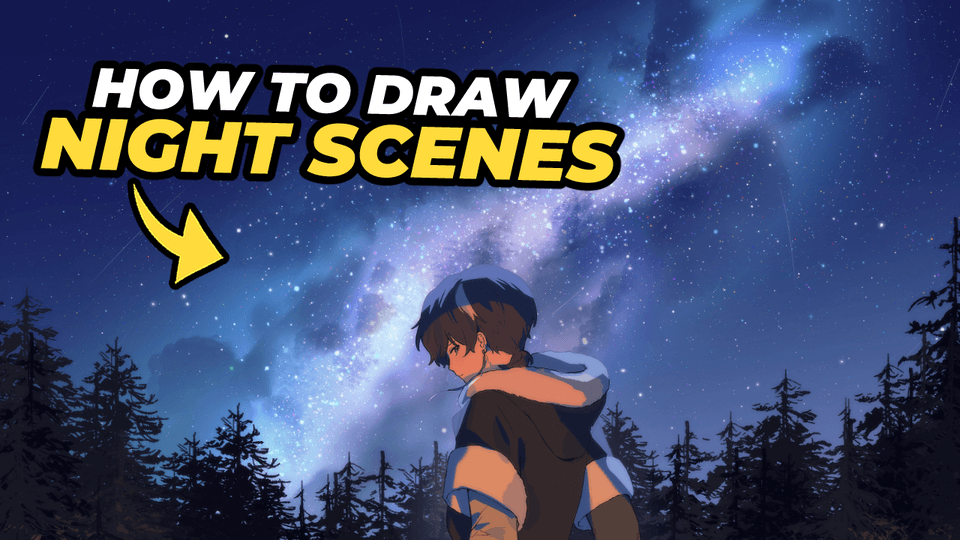
How to Draw Night Skies 2 Ways
Do you want to learn how to draw night scenes like I do?
Hi, my name is Oyun Orka, a VTuber who tries to draw, and for today, let’s cover how you can quickly and easily draw night scenes.
To start off, you can use any sort of deep blue color for sky, or even go more purple depending on what sort of look you want to go for.
Here, I’ll go ahead and make three different examples of different sort of night sky ideas that you can do just to give some inspiration. You could go for a very dark blue teal color, and then have a sort of gradient into a turquoise or slight greenish hue and go ahead and add stars as specs.
You can also vary the color of the stars when you’re drawing them. Something that I like to do when drawing stars is to use a mix of cyan blue, a deep dark blue, a more bright magenta, and also just regular white stars.
You can apply the same technique for a blue or even a purple gradient too.
You could finish it here. But I’m sure that you didn’t click on this Tips article to learn how to add specs to a gradient, so let’s go into how to add more depth to your star backgrounds.
In order to get that effect of a beautiful and full starry night sky, to start off, I’m going to go ahead and use this middle blue gradient that we used earlier as the primary reference for what sort of color we’ll be using.
When choosing colors for night skies, I typically like to vary the hue of this color wheel a little bit, as I’m picking up colors for the gradient. For example, if this is our base color of this blue here, what I want to do is either vary the bottom or top gradient a little bit to the left or right, so it’s either more cool or warm.
You can also use warmer or cooler colors using air brush to manually add in more colors. Here I use a darker, more saturated blue for the top of the sky, and a mix of cool cyan and warmer magenta on the bottom to add some visual interest.
Now that we have our base for a night sky, what you can do here is if you don’t have a speckle brush in your program, you can just do this manually where you go ahead and add in different dots over and over again. But ideally, if your program does allow for these sort of speckle brushes, it’s really helpful to quickly use one of these to block in lots of stars.
Here I’m using my own stars brush, the Oyun Stars brush, which is available on the Clip Studio Paint Asset store for download if you’re interested.
Now going back to the technique that I mentioned earlier, what I’m going to do is vary the colors of the star as I’m drawing this, because the brush that I’m using is pressure sensitive. So the lighter I press, the smaller the stars, and then the firmer I press, the larger the stars.
I’m going to go ahead and first use very light presses to add in a lot of stars that are very faint and barely visible using various colors. I use a mix of magenta, orange, cyan, blue, and white.
Milky Way (Manual Version)
Next, to add a sort of Milky Way galaxy effect that you see in a lot of star photography. There’s two ways that you can do this. Firstly, the manual way that you can do this is make a new layer, and then use any sort of soft airbrush, and airbrush in generally where you want this galaxy to go.
A technique that I personally like to use is to use any sort of cloud brush to sort of erase from this gradient that we just made. I’m going to go ahead and use my Hard Clouds 2 brush from my nature brush pack, which I’ve also linked below. We will use the trees brush later for the background too.
I just go ahead and use a cloud brush, and then make sure to set it to transparent or erase and erase from the airbrush layer along the edges. Next, just to blur this a little bit more, you can use any sort of blur, blend or fingertip brush.
Here I’ll just go ahead and use the fingertip and then make this sort of shaking motion with my pen just to blend that a little bit further. Next I’m going to go ahead and go back to my stars brush and then just add a lot more stars and press firmer for more specks along where this is forming. You can set the layer on this to Add, Add (Glow) or any other brightening layer effect of your choosing.
Next I’m going to go ahead and lock transparent pixels on the airbrush layer, and use a large airbrush to just brush in different colors for this too. Right now the base of this is dark blue, but I’m also going to go ahead and block in some warm colors near the center, just to add some more visual interest and contrast into this piece.
I’m using a brownish orange and purple for my airbrush. I also added another section on the side of the main airbrush ‘chunk’.
And while you could stop here, we can further layer on this by making another layer using any sort of textured or clouds brush, color pick the darkest value on the sky here and try to keep around this darker value here, and use the clouds brush once again to brush in a little bit more here.
Use a mix of both color and erase, and also use a slightly warmer tone for this as well (I used a dark brown along the bottom). You can play around with it until you’re happy with it.
Optionally, for more detail you can just use a very small thin brush then make small straight lines like these with your pen, just to give it that illusion of shooting stars in the night sky too.
Milky Way (Using Premade Star Brushes)
Alternatively, you can also use an asset to help create your starry sky. The brush that I like using most for starry night skies is the Starry Brush, and it is linked below.
You can use this brush on a new layer on the area you want your star or galaxy to go, and go ahead and set the blending mode to either color Dodge, Add (Glow) or anything else you like.
And if you wanted, you can also make a new layer, clip that to the stars layer, set it to Hue, Color or Overlay, and use airbrush to add more colors to the stars. Here I used a mix of cyan and magenta.
Next, like last time, you can use a mixture of textured brushes, cloud brushes and airbrush to create the effect of a Milky Way galaxy visible in the skies.
Adding Shading to Your Character
And if you wanted to add a character to this, to quickly add shading to your character and make it blend in better with the scene, here’s two ways that you can do this.
One is color pick the predominant color from the background. In this case, this sort of blue-ish color here, fill the entire layer, set that to multiply and use a darker color for the shading if desired.
Next, you can go ahead and add a new layer, clip that also to the character below. Pick a highlight color from the galaxy here, and sort of just use that to brush that in just along the edges of the character, just to sort of define the silhouette. And optionally you can use this sort of gradient or airbrush underneath the character layer just to highlight the character a little bit more.
Alternatively, if you want to go for the effect of sort of being lit up by campfire at night in the forest underneath the bright starry sky, you can try this instead.
In a new folder layer, clip that to the character base. Set this folder layer to multiply, and once again pick a predominant blue color from the background here, but this time on another layer in the same folder, you can use a bright orange color to just sort of block in where you want the sort of campfire glow to be.
Next, you can erase from where you want there to be shadows, and optionally, once you have finished your sort of orange glow light layer, you can lock the transparency on this and then further away from where the source (of light) is, make the orange a little bit darker, and then have it be a little bit brighter towards the bottom.
Next, just to add a little bit of bounce light, on another layer separate from the multiply folder, You can go ahead and color pick a predominant color from the sky, and then just add in a little bit of light, sort of on the planes where it’s facing the top of the sky. So in this case along the top of the head, on the collar of the jacket, this shoulder here and here, and then also kind of facing away from the camera or viewer too. I’ll go ahead and set this to Add and then lower the opacity of this. And just refine the shape a little bit more.
Next, just for some very final touches, I’m going to just go ahead and go back to using my evergreens tree brush, on a new layer set it to orange, then set it to erase, erase from it along the top, and use an airbrush to erase from that orange tree layer we made. This way it will give an effect of there being a campfire and then the fire sort of lighting up the trees surrounding the character a little bit.
And, after adding some final finishing touches, filters and effects, we’re done! And that’s how I personally draw outdoor night scenes like these.
For a more detailed explanation, please check out my video. Thank you!