
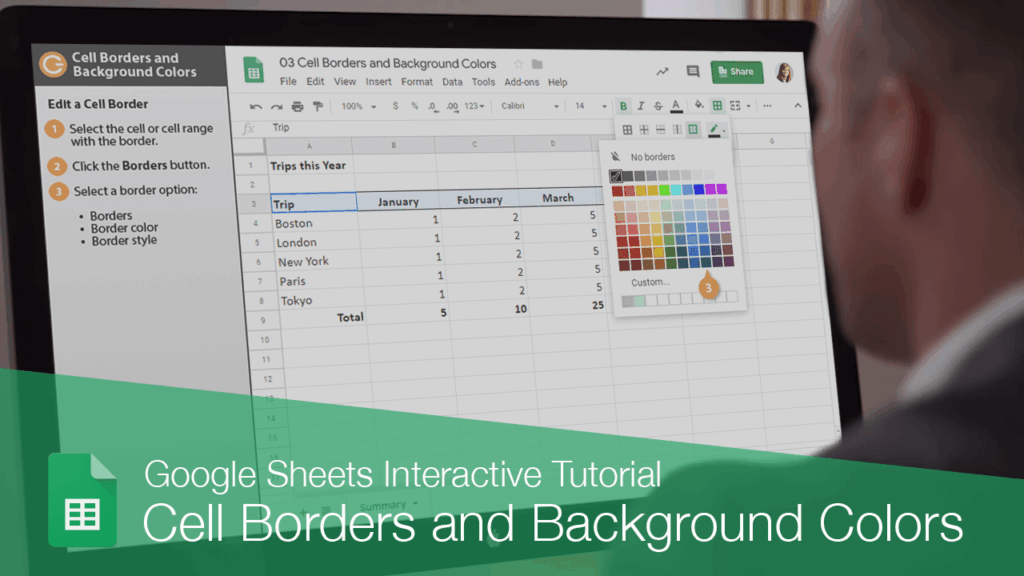
You can spice up your spreadsheets a bit by adding borders and background colors to cells.
Add a Cell Border
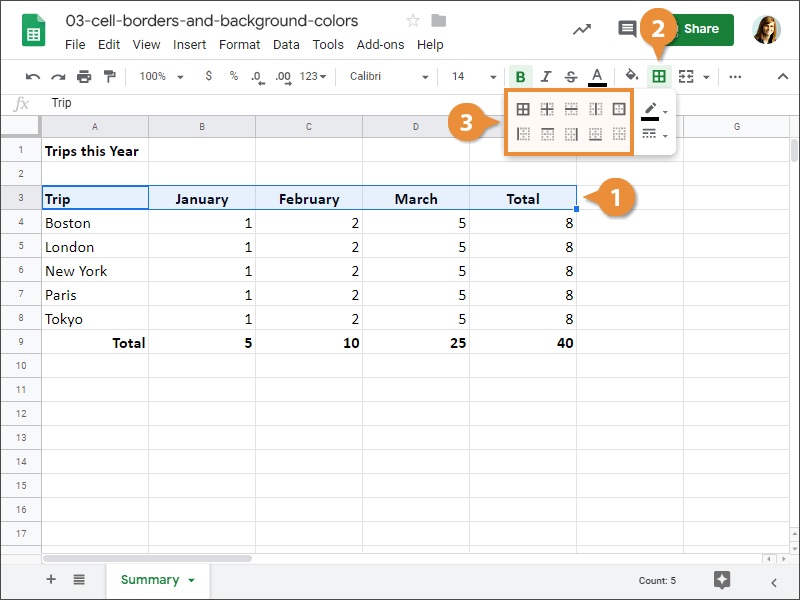
- Select a cell or range.
- Click the Borders button.
A menu of border options appears. Here, you can select where the borders appear around the outside of the selection, or cell borders within the selection.
- Select a border option.

A border appears around the selected cell(s).
Edit a Cell Border
You can also change the border style, including the color and thickness.
- Select the cell or cell range with the border.
- Click the Borders button.
The Borders menu is still displayed, and we can see the options to customize the border color and style.
- Select a border option:
- Borders
- Border color
- Border style
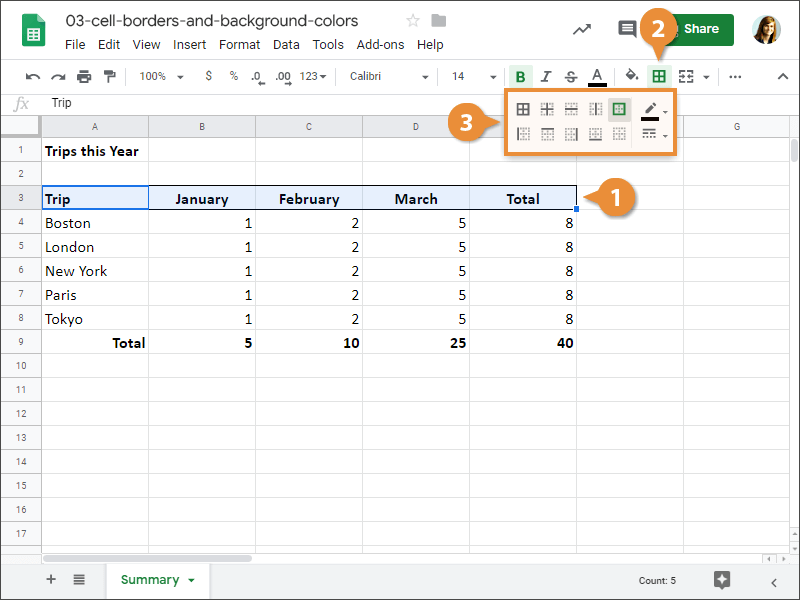
The border is updated, based on the changes you made to it.
Change Cell Fill Color
You can also change the background color of a cell.
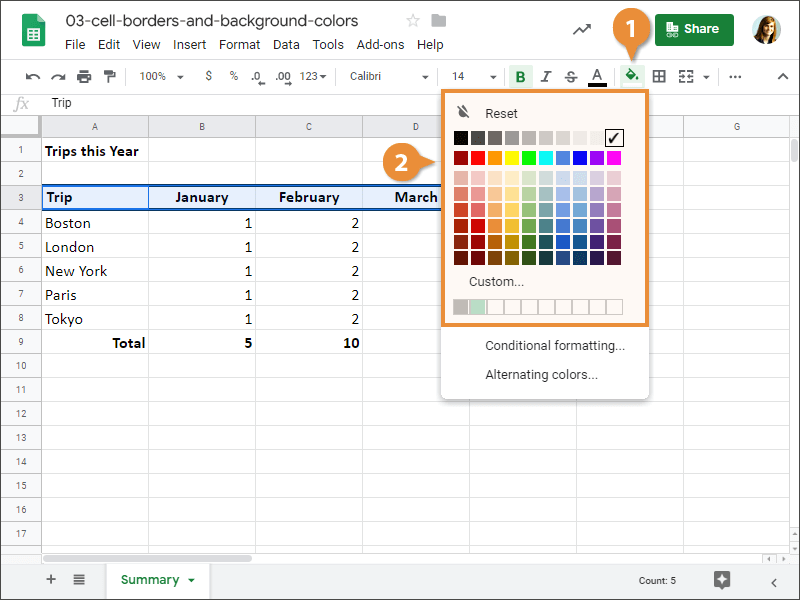
The cells are now filled with a background color.