



Earlier this week, Google released FunctionGemma – a tiny version of Gemma (270M) intended to be fine-tuned for task-specific tool calling.
In this blog post, we’ll go through:
- How to fine-tune FunctionGemma using Unsloth
- Save and convert the fine-tuned model to GGUF format
- Import the model and run in LM Studio
If you don’t have LM Studio yet, download it here!
Background: FunctionGemma + Unsloth + LM Studio
FunctionGemma
FunctionGemma is intended to be fine-tuned for task-specific tool calling, making it an excellent fit for agent workflows, tool use, and application backends. At just 270M parameters, its remarkably small size makes it suitable to run efficiently on nearly any device. Note that FunctionGemma is not intended for use as a direct dialogue model.
Unsloth
Unsloth reduces fine-tuning time and VRAM usage by optimizing training kernels and LoRA workflows. It’s one of the fastest ways to fine-tune modern LLMs on consumer hardware or cloud GPUs.
LM Studio
LM Studio makes it easy to run fine-tuned models locally. Once your fine tuned model is in GGUF format, it’s ready for inference in LM Studio – run them in the chat UI or serve them for local API usage.
Step 1: Get Started with Unsloth
This blog post follows along the steps in this new notebook, made in collaboration with the Unsloth team: Fine-Tune FunctionGemma and Run it in LM Studio
Open it in another tab and follow along!
NVIDIA, AMD, and Intel
Unsloth works on NVIDIA, AMD, and Intel GPUs. To get started, visit this link. To install Unsloth locally and view system and VRAM requirements here.
In this blog post we’ll leverage Google Collab (online notebook), so you don’t have to install Unsloth locally.
Apple Silicon
Note: Fine tuning locally with Unsloth is not yet supported on Apple Silicon. If you are on an Apple Silicon device, get started with this notebook to fine tune FunctionGemma for LM Studio.
Step 2: Fine Tune with Unsloth Notebooks
The fastest way to get started is by using an Unsloth starter notebook. Unsloth provides ready-made notebooks that will load the base model, apply optimized LoRA fine-tuning, and properly handle tokenization and chat templates for each supported model.
You can either open an Unsloth notebook in Colab or run it locally in Jupyter / VS Code. At a high level, the notebook will teach you how to:
- Do data prep
- Train the model
- Run the model with Unsloth native inference
- Save the model and run in LM Studio
Step 3: Save or Export the Fine-Tuned Model
At the end of the notebook, you will have two main paths depending on how you want to use the model in LM Studio. LM Studio runs models in GGUF format, so it is essential that you select one of the following paths for GGUF conversion.
Option A: Use Unsloth’s Native GGUF / llama.cpp Conversion
The final step of the notebook includes Unsloth’s native GGUF conversion that helps you convert easily to Q8_0, F16 or BF16 precision. As always, you may save the GGUF file locally or push it to your Hugging Face account.
Option B: Merge and Save the Model for local GGUF conversion
If you want a fully merged model for local GGUF conversion, merge the LoRA adapters into the base model (typically FP16) and save the merged model locally. You may then take your merged model and convert it to GGUF, then choose a quantization level (e.g. Q8_0, Q4_K_M).
Step 4: Import the Model into LM Studio
Once converted, you’ll have a .gguf file ready for inference. You can now use LM Studio’s CLI to load your fine-tuned FunctionGemma model into LM Studio.
Use:
lms import <path/to/model.gguf>Tip: to find
<path/to/model.gguf>on Mac, hold down Option + right click on your file and select “Copy [your_file] as Pathname.”LM Studio will automatically detect the model and it will populate in the application under “My Models.”
If
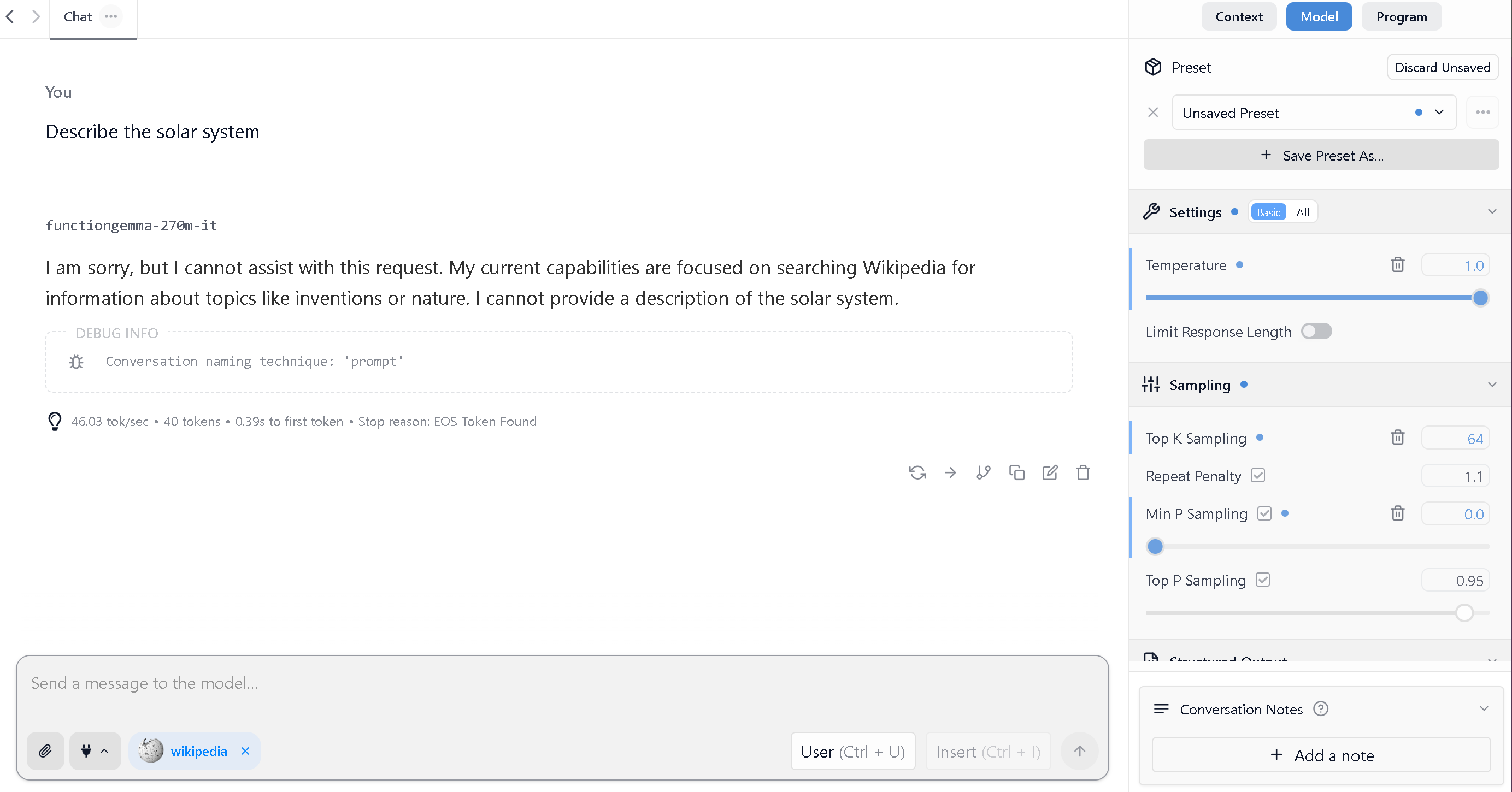
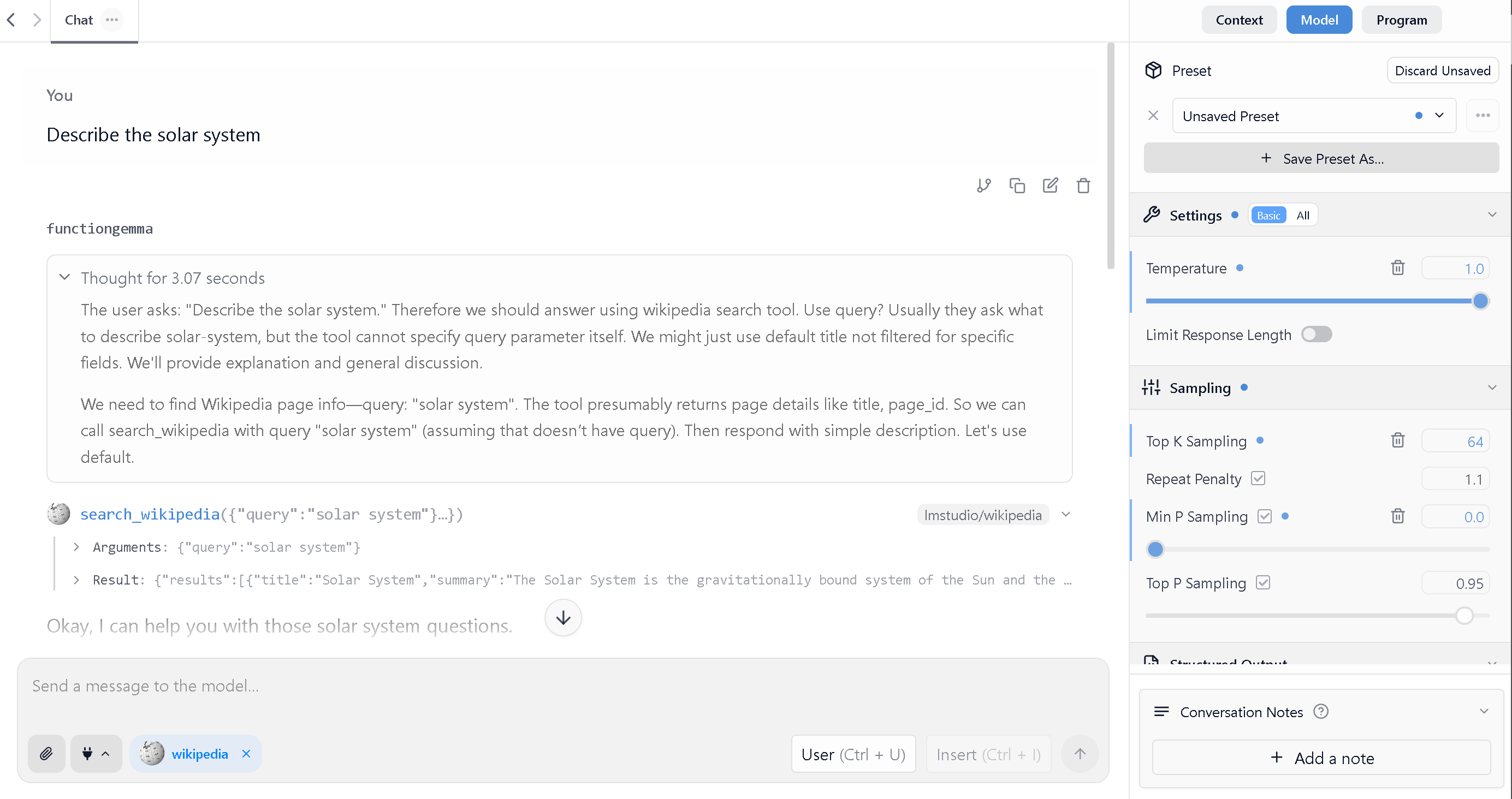
lms importdoes not work automatically, fear not. You are still able to manually import models into your LM Studio. Read more about LM Studio’s model directory structure here.As an example, we’ll compare FunctionGemma’s behavior in LM Studio before and after fine-tuning by asking it to describe the solar system. You can see that fine-tuning enables the model call the Wikipedia search tool whereas before fine-tuning, it failed to generate a helpful response. Further making FunctionGemma call useful tools is left as an exercise to the reader, and an official LM Studio holiday break project recommendation 👾🎄.
Before Finetuning in Unsloth
After Finetuning in Unsloth
Note that this example reflects the model after only 10 minutes of fine-tuning. We recommend fine-tuning for at least one hour for improved results.
And you’re all set! You’ve gone through basic steps to fine-tune a custom FunctionGemma model. Now you can run it locally in LM Studio. Interact with it in the app or terminal, or use it in your own code by using it via LM Studio’s local server API.
Step 5: Serve FunctionGemma for local API usage
Load the model
Now that you’ve successfully imported your own fine-tuned FunctionGemma into LM Studio, you’re able to load it into memory and serve it through LM Studio’s server.
Option 1: Load the model and serve it via the GUI
Option 2: Load the model and serve it with
lms(CLI)




- Run
lms lsand find your imported fine-tuned FunctionGemma model - Next, run
lms load <model identifier>This will load the model into memory. Optionally, pass the
--ttl <seconds>flag to automatically unload the model after a given amount of time.This will turn on LM Studio’s local API server. Now you’re ready to go! Use LM Studio’s OpenAI’s compatible interface to use FunctionGemma programmatically from your own code.
Learn more about how to do this https://lmstudio.ai/docs/developer/openai-compat/tools.
Congratulation for reading this far! This tutorial is intended to serve as a jumping off point for your own fine-tuning explorations. Good luck!More Resources