
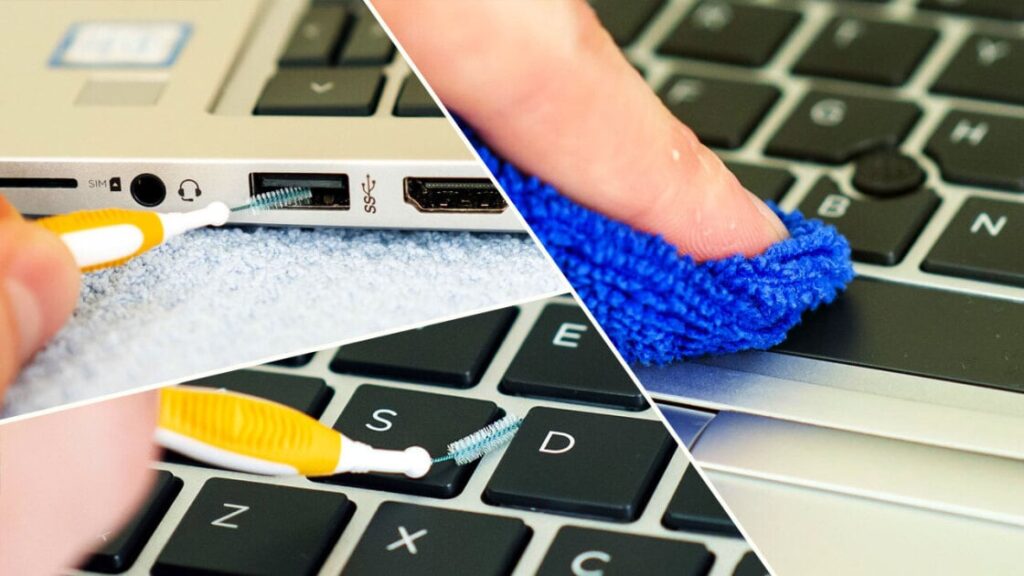
Spring means it’s time to clean your home from top to bottom, but don’t forget your tech. Keyboards, headphones, smartphones; they all need to be cleaned once in a while. Your laptop, meanwhile, is a bit more complicated because it includes a little bit of everything. You’ll need to know how to degunk your laptop keys, wipe down the screen, sanitize the outer frame, and clean out all the vents and ports before the job is done.
Basic cleaning supplies and 15 minutes of time can make your laptop look brand-new again. If you’re seeing signs of grime—dust, coffee stains, oil from your fingertips, food particles—it’s time to clean and disinfect. It’s also a good idea to keep your computer clean year-round, not just when it reaches grungy critical mass.
On Your Marks, Get Your Cleaning Supplies
Most of the cleaning supplies you need are likely already in your home. A proper cleaning cloth is first. Instead of a cotton rag or paper towels, which can leave behind dusty debris (some brands are better than others), use a microfiber cloth. You can easily find them online, or in grocery, automotive-supply, and dollar stores. The least expensive microfiber will work fine.
Next, invest in a can of pressurized canned air, found online and in grocery and electronics stores. It’s quite effective for blasting debris from hard-to-reach spaces—with a key caveat we’ll get into in a moment. You’ll also want to buy a packet of plastic dental cleaners, the type with tiny bristles, like miniature bottle brushes. They can coax hairs, crumbs, and other stubborn debris from their hiding places.



Stop Cleaning Your Phone Wrong: Safe Tips for 2026
For cleaning solutions, tap water or distilled water can be used for just about everything. But water alone doesn’t disinfect or remove oil and other substances particularly well. Dish soap (a strong mix at first, diluted 50/50 with water) and vinegar are appropriate for any surface. In addition, isopropyl alcohol is effective for disinfecting the keyboard. The alcohol has the nice side benefit of drying quickly.
Definitely avoid ammonia and bleach-based products. These are too harsh for many surfaces, especially the screen. For the laptop panel, electronics stores sell dedicated screen-cleaning solutions (usually in pump-spray and wipe form) if you prefer a specialized product. When in doubt, stick to skin-safe products.
If you’re working with cleaners or compressed air, do the job in a ventilated area. Use a hard, flat surface, such as a table or desk, for your venue. Put down a clean towel (preferably microfiber), then place your device on top so it has some cushioning and protection from scratches when you flip it over on the lid. Last, wash and dry your hands before you start and after you’re done. If you intend to use cleaning products other than water and have sensitive skin, consider donning gloves.


(Credit: Charles Jefferies)
Before You Begin: Pro Tips for Handling Your Laptop
Let’s get going. Completely turn off and unplug your computer before cleaning. You’ll be inadvertently pressing many keyboard keys while cleaning, so you wouldn’t want to accidentally hit Delete over an important document or wipe out desktop shortcuts due to key-mashing. Though your laptop will be stationary while you’re cleaning it, you’ll need to manipulate it in unnatural ways throughout the process to get at every surface. Doing so improperly can cause damage; follow these tips to keep it running in order.
-
There are many bad habits that can lead to accidental damage. One rule to always follow is to put as little pressure as possible on its surfaces. Respecting this principle helps prevent cracked circuit boards or broken solder traces. These usually occur when the device is flexed or pressed too hard.
-
Use both hands to support the machine on both sides when picking it up or moving it, especially when grabbing it by the keyboard deck. This more evenly distributes pressure from your fingertips, creating less stress on the chassis. Avoid picking it up by one corner, as this concentrates extreme pressure in one area.
-
Lifting it by any part of its lid is another no-no. Close the lid before moving it to reduce its footprint. A closed laptop is also less likely to get damaged if dropped.
-
Another often-ignored rule? A no-liquids perimeter! Keep open liquids out of spill range. This is especially important if you have pets or children who tend to surprise you at odd moments. Accidents occur all the time.
-
You shouldn’t hold the laptop while cleaning it. Not only would it be difficult, but it would also violate many of the guidelines outlined above. Keep the device on a flat surface at all times so you can clean it more effectively and are less likely to have a catastrophic mishap.
Square One: Clean Debris With Canned Air
Particles, dust, and hair can lodge in any gaps on your machine: under the keyboard keys, around the screen edges (inside the bezel), and both in and around the touchpad buttons, the physical ports, and the cooling vents. Clear that debris before doing anything else—you wouldn’t want to clean a larger surface only to scatter dislodged crud from crevices all over it a moment later.
Start with the canned air. Follow the directions and warnings on the package. If a straw is included, insert it into the nozzle to concentrate the air stream. Use short bursts of less than a second, keeping the can at arms’ length. Crucially important: Keep a slight distance between the nozzle and your target, and close in only as much as you must to dislodge the material. Touching the target with the nozzle or sticking it in a port, then letting the can rip, can cause condensation, a dangerous side effect of canned air. You definitely don’t want moisture forming, say, inside a USB port, on the contacts under the keys, or through a seam in the chassis. Err on the side of safety.

(Credit: Charles Jefferies)
Another important tip: Always keep the canned air upright. This will prevent water vapor from coming out. If the can gets too cold, let it rest for a few minutes before continuing. One spot to be prepared for is in the laptop’s exhaust vents, where clotted dust tends to accumulate in the fans and heat spreaders. Be ready for a little dust-cloud blowback if you direct the canned air into the vents. Don’t inhale. (Got extra face masks hanging around? Now might be a good time to don one.)

(Credit: Charles Jefferies)
To clean the keyboard, start at the bottom row and work your way up. Two bursts per key ought to produce results. You might need to approach the keyboard from different angles, such as from the side, to get everything. Some bagel crumbs are really stubborn.


Get Our Best Stories!
Get the Most Out of Your Technology


Thanks for signing up!
Your subscription has been confirmed. Keep an eye on your inbox!


(Credit: Charles Jefferies)
Try the dental cleaners if a few bursts of air don’t do the job. Focus on gently loosening debris with the brushes; you can use canned air to blast gunk out, if needed, once it’s stirred up. A key thing: Like with canned air, don’t overdo it or get too aggressive. Don’t force the brush into places, poke too hard, or pry under the keyboard keys. Mild scrubbing around the edges ought to do most of the job. And if pet hair is a factor for you, guiding the bristle brushes along key edges can grab hairs and pull them out.


(Credit: Charles Jefferies)
Don’t Type Another Word! Clean and Disinfect That Keyboard
Once you’ve traced around the keys, the keyboard face is the next obvious candidate for a thorough cleaning. Dirt, grime, oil from your fingertips, and lots of bio-critters live here. Use microfiber for this, but don’t just wipe straight across the keys. Depending on the keyboard design, the cloth can catch on key edges and rip them clean off! Instead, spend a couple of seconds on each key.


(Credit: Charles Jefferies)
Start by lightly dampening a quarter-size area of the microfiber with your preferred cleaning product. (For disinfecting power, use vinegar, isopropyl alcohol, or hydrogen peroxide.) If liquid drips out when you squeeze the cloth, you’ve used too much. You don’t want the chance of droplets getting inside anything.
Put the dampened portion in gentle contact with a key. Use just enough pressure to depress it, then slowly move the microfiber in a circular motion with a finger. Watch the microfiber as you clean. As the section you’re using gets soiled, dampen another section and keep going. Clean between the keys, too, if the keyboard is the “island”-style shown here.
Recommended by Our Editors


(Credit: Charles Jefferies)
Clean the Chassis and Touchpad
The next phase is cleaning the laptop’s outer surfaces. Lightly dampen a larger section of your microfiber with your cleaning product. Moving outward from the keyboard, start with the palm rest and touchpad, then move to the screen border or bezels, but avoid the screen for now. After that, close the laptop and work on the lid and underside. As with the keyboard keys, circular motions are effective. Never rub too hard, but use only about as much pressure as it takes to push down a keyboard key.
For stubborn stains, especially coffee, you can apply a tiny amount of diluted dish soap directly to them and let it sit for a minute to break down the stain. Try this only on level surfaces, so the soap doesn’t run or drip anywhere. Afterward, work the stain with a microfiber dampened with water. Remove any soapy residue, and be liberal with using clean sections of your cloth.

(Credit: Charles Jefferies)
Last, Clean the Screen
Cleaning the display panel is the final, and most delicate, task. Dampen a fresh section of your microfiber with water and see how much you can accomplish with just that. Start from the edges and work your way inward to avoid lodging cleaner or gunk bits under the bezel as you wipe. It’s important to support the lid with your free hand behind where you are cleaning, so the laptop doesn’t flip backward, and the lid doesn’t twist. And use no more pressure than is required to make the microfiber contact the screen—the cloth should do the work, not pressure.
As with cleaning the chassis, diluted dish soap works well for tough stains or marks. You might try a dedicated screen cleaner, as noted earlier. Whichever you use, be careful not to let any liquid drip into the edges of the screen. And most important: Never, ever spray the screen directly with any cleaner or water. Instead, apply it to your cleaning cloth first, and test for non-saturation and dripping before you apply the cloth to the screen. If you spray your liquid straight on, runoff can easily get under the screen’s bottom bezel, and critical electronics often live right there.

(Credit: Charles Jefferies)
Tips for Always Keeping Your Laptop Clean
When you’ve finished cleaning, you’re done. This isn’t like a car, where you need protective products, such as wax, on its surfaces. In fact, this could cause problems, especially if it got on the screen. Bear in mind, for example, that when the laptop is closed, the keytops may make contact (or near-contact) with the display. And any material on there could transfer to the panel, staining or damaging its surface.
However, a laptop is like a car in a different sense: cleaning it takes much longer if you put it off for too long. So save yourself time and give your device regular attention. You don’t need a calendar reminder. Simply keeping microfiber within reach (in your laptop bag or on your desk, for instance) will give you little excuse to ignore sticky food and coffee spots. Tap water should be all you need if they aren’t allowed to dry.
Finally, a little disinfectant is always handy for keeping the keyboard sanitary. These days, peace of mind can be hard to come by, and keeping your laptop free of invaders you can see—and those you can’t—is an easy way to regain a bit of control in your world. So show those germs who’s boss!
About Our Expert


Experience
Computers are my lifelong obsession. I wrote my first laptop review in 2005 for NotebookReview.com, continued with a consistent PC-reviewing gig at Computer Shopper in 2014, and moved to PCMag in 2018. Here, I test and review the latest high-performance laptops and desktops, and sometimes a key core PC component or two. I also review enterprise computing solutions for StorageReview.
I work full-time as a technical analyst for a business software and services company. My hobbies are digital photography, fitness, two-stroke engines, and reading. I’m a graduate of the Rochester Institute of Technology.
Latest By Charles Jefferies