
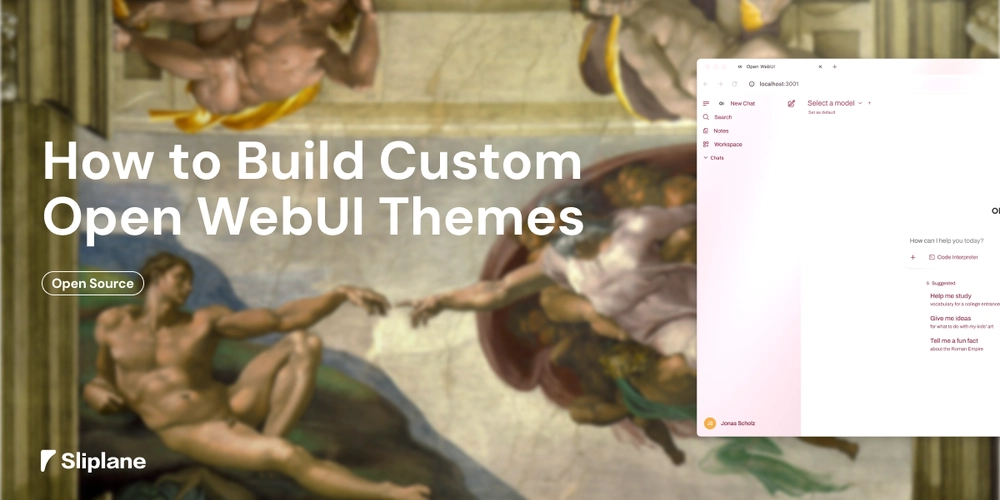
While Open WebUI doesn’t have built-in theming support, you can easily customize its appearance by injecting a custom CSS file into the Docker image. This guide will show you how to create your own themed version of Open WebUI.
Want to see a complete example? Check out our Open WebUI Theme repository on GitHub for a full working implementation.
Look at this beautiful (questionable) pink theme:

Prerequisites
- Docker installed on your system
- Basic CSS knowledge
- A text editor
Step 1: Create a Dockerfile
First, create a Dockerfile that extends the Open WebUI image:
FROM ghcr.io/open-webui/open-webui:git-49a928d

# Optional: Replace favicon icons
# COPY favicon.svg /app/build/static/favicon.svg
# COPY favicon.png /app/build/static/favicon.png
# COPY favicon.ico /app/build/static/favicon.ico

# Copy your custom CSS file
COPY custom.css /app/build/static/custom.css
Exit fullscreen mode
Important: Always use a specific version tag (like git-49a928d) instead of main to ensure your theme doesn’t break with updates. Check the Open WebUI releases for available tags, especially if you need CUDA or Ollama support.
Step 2: Create Your Custom CSS
Create a custom.css file in the same directory as your Dockerfile. Here’s an example theme with a blue and yellow color scheme:
:root {
  --primary-text: #00487d;
  --primary-yellow: #ffd600;
  --primary-bg: #e2eef5;
  --hover-bg: #d4e3ed;
}

* {
  color: var(--primary-text) !important;
}

#send-message-button {
  background-color: var(--primary-yellow) !important;
}

#sidebar {
  background-color: var(--primary-bg) !important;
}

#sidebar > div *:hover {
  background-color: var(--hover-bg) !important;
}

[aria-label="Voice mode"] {
  background-color: var(--primary-yellow) !important;
}

.tippy-content {
  background-color: var(--primary-yellow) !important;
  border-color: var(--primary-yellow) !important;
}

.tippy-box {
  background-color: var(--primary-yellow) !important;
  border-color: var(--primary-yellow) !important;
}

button[type="submit"] {
  background-color: var(--primary-yellow) !important;
}

[role="switch"][aria-checked="true"] {
  background-color: var(--primary-yellow) !important;
}

button.px-3\.5.py-1\.5.text-sm.font-medium.bg-black.hover\:bg-gray-900.text-white.dark\:bg-white.dark\:text-black.dark\:hover\:bg-gray-100.transition.rounded-full {
  background-color: var(--primary-yellow) !important;
}
Exit fullscreen mode
Step 3: Finding CSS Selectors
To customize other elements:
- Open Open WebUI in your browser
- Right-click on the element you want to style
- Select “Inspect” or “Inspect Element”
- Find the appropriate CSS selector
- Add it to your
custom.csswith!importantto override existing styles
Step 4: Build and Run Your Custom Image
Build your Docker image:
docker build -t my-custom-openwebui .
Exit fullscreen mode
Run your themed Open WebUI:
docker run -d -p 3000:8080 \
  -v open-webui:/app/backend/data \
  --name open-webui-custom \
  my-custom-openwebui
Exit fullscreen mode
The core functionality of Open WebUI hasn’t changed. All normal configuration still applies!
Tips and Best Practices
- Use CSS Variables: Define colors as CSS variables for easy theme-wide changes
- Test Thoroughly: Check all UI elements to ensure your theme doesn’t break functionality
- Use Specific Selectors: Some elements may need very specific selectors due to Open WebUI’s styling approach
- Version Control: Keep your Dockerfile and custom.css in version control
- Document Your Changes: Comment your CSS to remember what each override does
Deployment
Want to deploy your custom-themed Open WebUI quickly? Check out our guide on self-hosting OpenWebUI with Ollama which shows you how to deploy Open WebUI in minutes. Once deployed, you can easily update the container with your custom theme.
Conclusion
Creating custom themes for Open WebUI is straightforward once you understand the process. By injecting a custom CSS file into the Docker image, you can completely transform the look and feel of your Open WebUI instance. Remember to use specific version tags and test your themes thoroughly before deploying to production 🙂
Happy theming!
Jonas, Co-Founder of sliplane.io